Artificial intelligence or AI is not just for tech work it can also help you create art. Today AI can make amazing pictures from simple text or change an existing picture into a new creative image. Whether you are a designer marketer or just doing it for fun, AI image generation gives you new ways to be creative.
In this guide we will explain how AI makes images, what tools you can use and tips to help you get better results. By the end you will know how to make AI pictures and how to improve your ideas, use prompts and try different styles to get what you want.
What You Need Before You Start: Building Your AI Art Foundation
- Learn the Basics of AI and Machine Learning
AI image generation uses models that learn from lots of data. Knowing simple ideas about how AI learns and how it turns text or pictures into detailed images will help you understand what is happening.
- Get Familiar with AI Image Tools
Before making your first AI picture try using tools like MidJourney DALL·E and Stable Diffusion. These tools are easy to use and help you explore AI art. Knowing how to make an account and enter prompts will save time and let you use advanced features.
- Be Ready to Experiment
Making AI art is both science and art. The more you try different prompts styles and options the better you will understand how AI works. Try new ideas and see every result as a way to learn.
- Be Patient and Keep Trying
AI art may take many attempts to get the picture you want. Changing prompts trying different settings and improving early results is normal. Patience and practice will help you make images you really like.
Unlocking the Magic of AI Image Generation
AI image generation is when computers make completely new pictures. They can do this from text descriptions or by changing existing images into new creative images. AI learns from millions of pictures and information about them. By studying patterns in shapes colors textures lights and styles AI can make images that match a certain idea or mood.
Whether you want real life scenes abstract art or cartoon style pictures understanding how AI works helps you make better images
How AI Turns Words and Images into Visuals
AI uses machine learning to see patterns in pictures and copy them. There are two main ways AI makes images
- Text-to-Image AI reads your words and makes a picture from them
- Image-to-Image AI takes a picture you already have and changes it into a new style or idea
To do this AI uses special models like GANs VAEs and Diffusion Models. These are the main technology behind tools like DALL·E MidJourney and Stable Diffusion and each tool has its own way to make creative images
Key AI Architectures Driving Image Generation

- Generative Adversarial Networks (GANs): The Art of Friendly Competition
GANs are a type of AI that uses two networks working together:
- Generator: Makes fake images trying to look real
- Discriminator: Checks if the images look real
This “game” helps the generator get better and better, making images that can look as good as human-made art.
Why GANs Are Powerful
- Can make very detailed and realistic images
- Well studied and has strong community support
- Always improving
Challenges with GANs
- Training is tricky and needs careful settings
- Needs a lot of computer power
- Sometimes makes only limited types of images
- Variational Autoencoders (VAEs): Controlled Creativity
VAEs use neural networks to learn simple and useful ways to represent images.
How VAEs Work
- Encoder: Changes input images into a small representation as a probability
- Decoder: Uses this representation to make new images similar to the original
Advantages of VAEs
- Makes it easier to control what images look like
- More stable and easier to understand than GANs
Limitations of VAEs
- Images may be less sharp or detailed than GAN images
- Needs careful adjustment to make images look better
- Diffusion Models: From Noise to Masterpiece
Diffusion models like Stable Diffusion are good at making detailed and creative pictures. They start with random noise and turn it into a clear image step by step.
Step-by-Step Process
- Forward Diffusion The model adds noise to training images and learns how images change when messy.
- Reverse Diffusion Then it learns how to remove the noise step by step to make images clear again.
- Generation Starting from just noise the model uses what it learned to make a full detailed picture
Why Diffusion Models Shine:
- Capable of generating high-quality, varied images.
- More stable training compared to adversarial models.
- Offers fine-grained control over image creation at each generation step.
Challenges with Diffusion Models:
- Computationally intensive and slower than GANs.
- Requires specialized knowledge for proper setup and parameter tuning.
The Best Tools to Bring AI Creations to Life
When making AI pictures, using the right tool makes a big difference. Today’s top tools use smart algorithms, easy interfaces, and let anyone—from beginners to professionals—create amazing images. Let’s look at the best AI image tools and what makes each one special.
- MidJourney: Your Personal AI Artist
MidJourney is great for making stylish and beautiful art from simple text. You can use it on Discord or the web. It is good for concept art, illustrations, and creative designs.
Why MidJourney Stands Out
- Creative Freedom: Turns simple text into detailed and expressive pictures
- Easy to Use: Lets you make many versions, change prompts, and improve results quickly
- Community Inspiration: On Discord, you can see tips, prompts, and cool examples from others
Use Case Example
If you want a futuristic city with neon lights, a good prompt in MidJourney can make many versions of that idea ready for improvement
- DALL·E: AI Creativity Meets Imagination
DALL·E from OpenAI is a text-to-image AI that can turn complex or abstract ideas into pictures.
Key Advantages of DALL·E
- Understands Complex Prompts: Can read detailed text and make accurate images
- Easy to Use: Works with ChatGPT, so generating images is like chatting with a friend
- Creative Output: Makes realistic or artistic and surreal images
Use Case Example
If you type “a robot painting a self-portrait in an impressionist style under warm lights”, DALL·E can make many versions of that picture ready to use or improve.
- Stable Diffusion: Flexible and Customizable
Stable Diffusion is a text-to-image tool made by Stability AI. It lets you make pictures and control how they look. You can even run it on your own computer for privacy and special tasks
Why Use Stable Diffusion
- Many Types of Pictures You can make realistic images, abstract art, or anything in between
- Customizable You can change settings use different models or add extra features
- Community Help Many tutorials and shared models are available and people help each other learn.
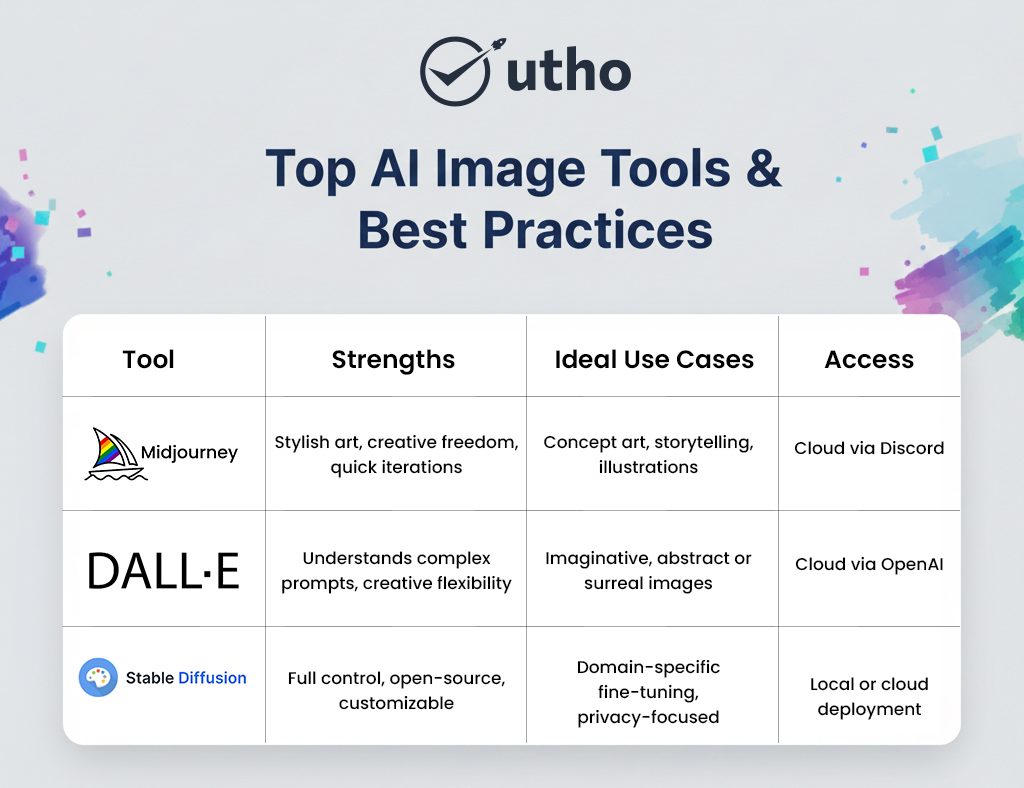
Tip
- MidJourney is good for making quick and creative pictures
- DALL·E is good for making imaginative or unusual pictures
- Stable Diffusion is good for people who want to change settings or work on their own computer
The Best Tools to Bring AI Creations to Life
Using the right tool makes AI pictures easier and better. Today’s tools are smart and easy to use. Anyone can make cool pictures, from beginners to experts.
- MidJourney: Your AI Artist
MidJourney makes stylish and beautiful art from simple text. You can use it on Discord or the web. It is good for drawings, concept art, and creative designs.
Why MidJourney is Good
- Creative Freedom: Turns simple words into detailed pictures
- Easy to Use: Make many versions and improve pictures quickly
- Community Help: See tips and examples from other users on Discord
Example
If you want a city with neon lights, MidJourney can make many versions of it for you to choose from
- DALL·E: AI Creativity
DALL·E from OpenAI can turn ideas into pictures, even if they are unusual or abstract.
Why DALL·E is Good
- Understands Details: Can read long or detailed text and make images
- Easy to Use: Works with ChatGPT like a chat
- Creative Pictures: Makes realistic or fun artistic images
Example
If you type “a robot painting itself in a colorful style under warm lights” DALL·E can make many versions ready to use
Instead of just typing "a house" try something like "A foggy old mansion on a hill with golden sunset light detailed wood and ivy climbing the walls seen from below"
Tip: The more details you give the better the AI can make your picture
- Fine-Tuning Style and Settings
Most AI tools let you change settings to make pictures look how you want
- Aspect Ratio Pick square wide or tall depending on your picture
- Art Style Choose realistic cartoon painting watercolor or other styles
- Quality Change resolution and detail to make the picture sharp and clear
Platform-Specific Controls:
- MidJourney:
- --stylize to increase creative interpretation
- --chaos to introduce variability and unique results
- --stylize to increase creative interpretation
- Stable Diffusion:
- Adjust sampling steps and CFG scale to refine generation quality
- Adjust sampling steps and CFG scale to refine generation quality
Pro Tip: Experiment with parameters in small increments to understand how each adjustment affects the final image.
- Generating Your First Images
Once your prompt and parameters are ready:
- Enter the text prompt into your selected platform.
- Run the generation and wait for the outputs.
- Review multiple variations to find your preferred interpretation.
Pro Tip: Don’t expect perfection on the first try. AI often produces surprising or unexpected results that can inspire further creativity.
- Iterating and Perfecting Your AI Creations
Making an image is just the first step. You can improve it in many ways:
- Upscaling: Make the picture bigger and clearer for printing or close-up details
- Variations: Make slightly different versions to see new ideas or styles
- Inpainting & Outpainting: Change a small part of the picture (inpainting) or make the picture bigger by adding more around it (outpainting)
Tip: Think of each version as an experiment. You can mix ideas from different pictures or change your words to make it better
By practicing these steps you can turn simple text into full AI pictures and still keep control of your ideas and style
- Transforming Existing Images: From Photo to Masterpiece
- AI can change an existing picture into something new. You can add an art style make it look real or try creative effects
- Step 1: Choosing the Right Picture
Start with a clear and high-quality picture. Bright and sharp pictures give better results.
Tip Pictures with a clear main subject and background work best
- Step 2: Uploading Your Picture
Some popular tools for changing pictures are
- Artbreeder: Perfect for artistic exploration and style blending.
Upload your chosen image into the platform and prepare for creative experimentation.
Step 3: Adding Style or Instructions
After uploading your picture you can tell AI how to change it.
Example Prompts
- “Make this photo look like a Van Gogh painting with bright colors and brush strokes”
- “Make it look like a cyberpunk city with neon lights rain and a futuristic style”
Tip The more details you give about colors mood light and view the better the AI picture will match your idea.
Step 4: Changing How Much AI Changes the Picture
Most tools let you decide how strong the changes should be
- High Big changes and bold new look
- Low Keep most of the original picture and change style a little
Tip Try medium changes to keep details and add style
Step 5: Making Many Versions
AI pictures can be improved by making several versions. Don’t stop at the first one
- Try different angles lights or styles
- Mix your favorite parts from different versions to make the best picture
Step 6: Downloading and Final Touches
After finishing your picture you can make it even better
- Make it bigger and sharper with AI upscalers
- Adjust colors contrast or textures in editing software
- Add small details to make it more real or artistic
Pro Tip: Post-processing allows you to perfect the image while maintaining the AI’s creative contribution.
Transforming Existing Images: From Photo to Masterpiece
AI can change an existing picture into something new. You can add an art style make it more realistic or try creative effects.
Step 1: Choosing the Right Base Image
Start with a clear and high-quality image. Bright and sharp pictures give better results.
Tip: Pictures with a clear main subject and background work best.
Step 2: Uploading Your Image
Some popular tools are:
- Stable Diffusion: Works on cloud or your computer
- Artbreeder: Good for mixing styles and creative changes
Upload your image and get ready to change it.
Step 3: Adding Style or Transformation Prompts
Tell AI how to change your image. Be specific about style, colors, lighting, and mood.
Example Prompts:
- “Make this photo look like a Van Gogh painting with bright brush strokes”
- “Make it look like a cyberpunk city with neon lights and rain”
Step 4: Adjusting Transformation Strength
You can control how much AI changes the picture:
- High: Big changes, bold new look
- Low: Keep more of the original picture, small style changes
Tip: Try medium changes for a balance between old and new style.
- Harness Style Tags and References
Guide the AI using recognized stylistic references:
- Examples: –artstation, –trending on Behance, –cinematic lighting
- These tags allow AI to replicate the visual language or aesthetic trends of specific artistic communities.
Tip: Using style tags with clear instructions helps AI make very controlled and professional-looking images
By learning these steps you can turn any picture into a masterpiece and make custom AI art. Using image-to-image tools and clear prompts lets you be very creative and make almost anything you imagine
Best Practices and AI Art Techniques
| Technique | Description |
| Multi-Pass Generation | Generate an initial image and refine it using iterations. |
| Layered Prompt Strategy | Break complex scenes into steps: environment, characters, details. |
| Lighting & Composition Cues | Apply cinematic lighting or compositional focus. |
| Embrace Happy Accidents | Use unexpected results for inspiration. |
| Combine Tools | Use multiple platforms for generation and retouching. |
| Stay Updated | Keep track of tool updates for improved features. |
Frequently Asked Questions About AI Image Generation
AI image generation is fun but people have questions. Here are some answers
- How Do AI Image Generators Work?
AI image generators use machine learning. They learn from millions of pictures and information about them. They study
- Shapes and structures
- Colors and textures
- Light and layout
When you give a text prompt AI reads it and makes a picture based on what it learned. For changing a picture AI adds styles or changes while keeping the main parts of the picture
Tip: Knowing how AI works helps you write better prompts and get the pictures you want.
- Can AI Make High Quality Pictures for Printing
Yes. Most AI tools can make pictures bigger and clearer without losing detail. You can also use other AI upscalers or editing programs to improve images for prints presentations or professional work.
Tip Upscaling works best if the original picture is clear and high quality. Always start with a good picture.
- Are AI Pictures Copyrighted
The rules about AI pictures are still changing. Here are some points to know.
- Platform Rules Some platforms let you use the pictures freely and others may not allow selling them.
- Creator Role You usually own the picture if you guide the AI with prompts edits and choices
- Local Laws Copyright laws are different in each country and may not fully cover AI pictures yet
Tip: If you want to use AI pictures for business check the rules carefully and you can mix AI images with your own work to be safe
- How Can I Make AI Art Look More Real
AI pictures look real when you pay attention to details
- Detailed Prompts Tell AI about light perspective textures and the environment
- Negative Prompts Tell AI what not to include to avoid mistakes or wrong details
- Settings Change model options like style strength or steps depending on the tool
Tip: Keep checking the results and change your prompts little by little. Think of it as working together with the AI
Conclusion: Using AI Creativity to the Full
AI image generation helps anyone make amazing pictures easily. Tools like MidJourney DALL·E and Stable Diffusion have different strengths and can be used for drawings realistic pictures or concept art
By learning how AI works using clear prompts and trying many versions you can make great pictures while thinking about ethics copyright and creativity
Advanced tricks like multi-step generation style mixing and using fast computers can give even better results. Using these tools lets you make AI your partner to turn ideas into pictures that were hard to imagine before
Tip Always stay curious try different tools and prompts and keep learning new ways to make your AI art better